HP Smart

HP Smart
HP Smart printer setup manage print scan
Screenshots

HP Smart: Streamlining Printing and Scanning Management
HP Smart is a comprehensive mobile application designed to simplify the management of HP printers and scanners. It serves as a centralized hub for setting up, monitoring, and operating printing devices directly from a smartphone or tablet. The app supports a wide range of HP models, enabling users to print documents and photos, scan to digital formats, and perform maintenance tasks like checking ink levels or ordering supplies. By integrating cloud services and offering remote printing capabilities, HP Smart transforms traditional printing workflows into a more flexible and efficient digital experience. Its user-friendly interface aims to reduce technical friction, making printer management accessible even to non-technical users.
Chapter 1: Function
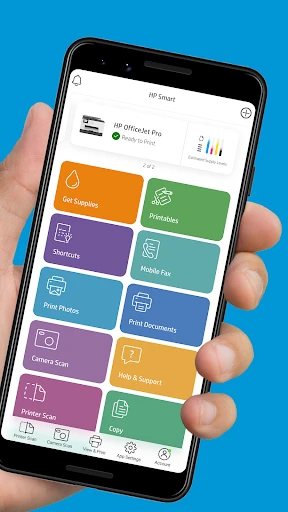
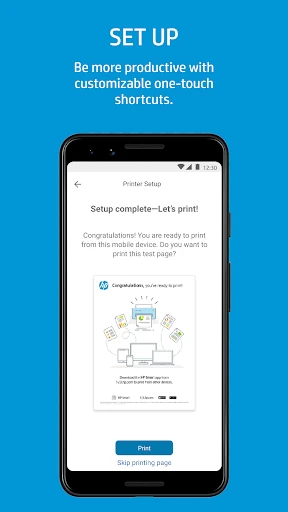
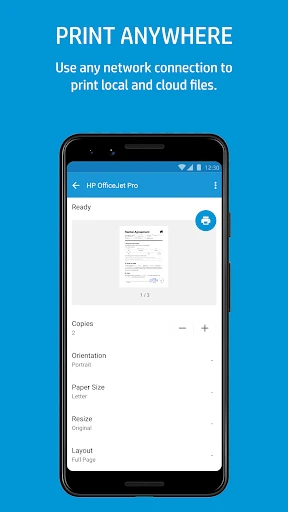
The core functions of HP Smart revolve around device control and document processing. First, it provides a guided setup wizard that connects new printers to Wi-Fi networks and registers them with the app, eliminating manual configuration steps. Second, the app enables direct printing from a mobile device or cloud storage platforms like Google Drive and Dropbox, supporting various file formats including PDFs and images. Third, its scanning feature captures documents using the smartphone camera or a connected scanner, offering options for cropping, color adjustment, and saving as JPEG or PDF. Fourth, HP Smart includes a monitoring dashboard that displays real-time ink or toner levels, alerts for paper jams, and links for ordering replacement cartridges. Additionally, it supports remote printing, allowing users to send jobs to a printer from anywhere, provided the device remains online. These functions are designed to replace traditional PC-based printer utilities with a more portable and intuitive mobile solution.
Chapter 2: Value
The primary value of HP Smart lies in its ability to reduce operational complexity and enhance productivity for both home and office users. For individuals managing multiple devices, the app’s centralized control eliminates the need to switch between different printer models or operating systems. Its remote printing capability is particularly advantageous for workers who travel frequently or operate in hybrid environments, as it ensures that urgent documents can be printed without physical proximity to the printer. Small business owners benefit from features like cost monitoring, where proactive ink level alerts help avoid unexpected downtime and reduce supply waste. Moreover, the scanning function digitizes paper records quickly, supporting paperless initiatives and improving document archiving efficiency. From a user experience perspective, the app’s simple onboarding process lowers the technical barrier for non-expert users, while regular firmware update notifications keep devices secure and compatible. Compared to traditional printer software, HP Smart reduces the time spent on troubleshooting by providing clear error messages and direct access to support resources. This combination of time savings, resource optimization, and accessibility positions the app as an essential tool for maximizing the return on investment in HP printing hardware.
Chapter 3: Scenarios
HP Smart primarily targets home users, small office workers, and mobile professionals who require reliable printing and scanning on demand. In a typical home scenario, parents use it to print school assignments, craft projects, or family photos directly from their tablets, while setting up the printer in a convenient location without a PC. For home offices, freelancers rely on the app to scan signed contracts, scan receipts for expense tracking, and print invoices from cloud email services during client calls. In small business environments, administrative staff use the app to manage multiple printers in different rooms, checking ink levels remotely to prevent supply shortages before busy periods like tax season. Mobile professionals, such as real estate agents or sales representatives, benefit from the ability to print listing brochures or order confirmations from their phones while at client sites. Everyday use cases also include quickly reprinting lost documents from cloud storage, managing scan-to-email functions for immediate document sharing, and using the camera-based scan tool when a traditional scanner is unavailable. These scenarios demonstrate how the app adapts to diverse workflow demands, providing flexibility across stationary and on-the-go contexts.
Advantages
- wireless setup via bluetooth for quick printer pairing
- supports remote printing from any location via cloud
- scan directly to phone using device camera as scanner
- ink level monitoring with automatic reorder alerts
- compatible with both ios and android ecosystems
Disadvantages
- requires internet connection for most core features
- heavy app size and occasional slow loading times
- printer offline errors frequent after firmware updates
- advanced settings hidden behind multiple menu layers
- limited support for third-party ink cartridges
Frequently Asked Questions
Q: What does HP Smart app do?
A: HP Smart is the official mobile app for managing HP printers. It enables wireless setup, printing, scanning, copying, and monitoring ink levels. The app supports cloud-based printing via HP ePrint and integrates with services like Google Drive and Dropbox for direct document access.
Q: Is HP Smart free to use?
A: Yes, HP Smart is free to download and use for basic printing and scanning. However, some advanced features like HP+ subscription services or Instant Ink plans require in-app purchases. No additional hardware is needed beyond a compatible HP printer and a Wi-Fi network.
Q: Does HP Smart work with all HP printers?
A: HP Smart works with most Wi-Fi-enabled HP printers released after 2010, including DeskJet, ENVY, OfficeJet, and LaserJet series. It is fully compatible with iOS and Android devices. Older USB-only printers may not be supported. Check HP’s official compatibility list for your model.
Q: How can I fix connection issues in HP Smart?
A: Ensure your printer and mobile device are on the same 2.4GHz Wi-Fi network. Restart both devices and the router. Open the app and re-run the setup wizard. If using Bluetooth, enable location permissions on Android. For persistent problems, uninstall and reinstall the app.
Q: Can HP Smart print from cloud storage?
A: Yes, HP Smart allows direct printing from cloud services like Google Drive, Dropbox, and iCloud. You can also print email attachments and web pages. Scanned documents can be saved directly to these cloud accounts. This feature works on both iOS and Android without extra setup.
Technical Information
Recommended for You

ConnectEBT

YouTube Kids

Philo: Shows, Movies, Live TV.

The Language of Letting Go

Scrambly: Play & Earn Rewards

SwingU: Golf GPS Range Finder

Microsoft Power BI

Livensa: AI Video Maker

Blinq: Digital Business Card

AlpineQuest Off-Road Explorer

Contacts

CIDER - Clothing & Fashion

GPS Phone Location Tracker

Moggr - Haircut & Looksmax AI

Diary with Fingerprint Lock

7-Eleven: Rewards & Shopping

FOREO For You

Life Bible

SuperCook - Recipe Generator

Experian

iReal Pro

Passport Parking

Realtor.com Real Estate & Rent
