Google Keep - Notes and lists

Google Keep - Notes and lists
Note taking lists for your thoughts and tasks
Screenshots



Google Keep - Notes and lists: A Tool for Instant Thought Capture
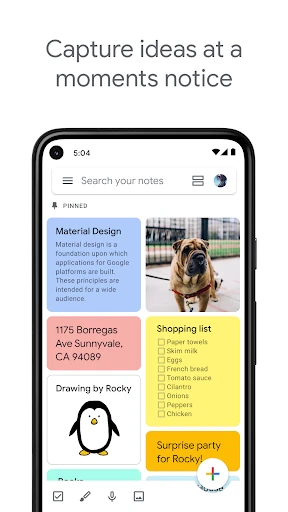
Google Keep is a note-taking and list-making application developed by Google, designed for simplicity and speed. It enables users to capture ideas, create checklists, record voice memos, and save images with text recognition, all within a clean and minimalist interface. The app syncs seamlessly across all devices via a Google account, ensuring that notes are always accessible whether on a phone, tablet, or desktop. Unlike more complex productivity tools, Keep focuses on quick entry and organization through color-coding, labels, and reminders. Its integration with Google Workspace, including Docs and Calendar, enhances its utility for both personal and professional use.
Chapter 1: Function
Google Keep offers a set of core functions centered on rapid capture and organization. Users can create text notes, bulleted lists, and checklists with one tap. The app includes a voice recording feature that automatically transcribes speech into text. For visual notes, users can take a photo or upload an image, and Keep applies optical character recognition (OCR) to extract any text within the image for searchability. Notes can be color-coded and labeled for easy categorization. A powerful search function filters notes by color, label, or content, including text found in images. The reminder feature allows users to set time-based or location-based alarms, such as a note that pops up when arriving at a grocery store. Additionally, Keep supports collaborative editing, enabling multiple users to work on a note or list simultaneously.
Chapter 2: Value
The primary value of Google Keep lies in its frictionless user experience and deep ecosystem integration. Unlike many note-taking apps that require manual sorting or folder structures, Keep uses a card-based, drag-and-drop interface that makes organization intuitive and visual. Its biggest advantage is speed: users can open the app and record an idea in under five seconds, whether through text, voice, or image capture. The OCR feature transforms photos of whiteboards, receipts, or documents into searchable text, effectively turning the camera into a scanning tool. Seamless synchronization across Android, iOS, and web means that a note started on a phone is instantly available on a desktop browser. Integration with other Google services amplifies its utility; notes can be copied into Google Docs, and reminders sync with Google Calendar. The app is also free, with no storage limits for standard notes, making it accessible to everyone. For users who prioritize simplicity over feature-rich complexity, Keep provides exactly enough functionality to capture, organize, and retrieve information without overwhelming them.
Chapter 3: Scenarios
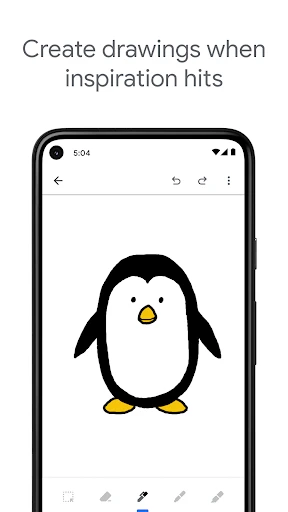
Google Keep primarily targets individual users who need quick, lightweight note-taking across multiple devices. Its primary user groups include students who use it to capture lecture ideas, record voice memos for study reminders, and create checklists for assignments. Professionals in fast-paced environments, such as journalists or project managers, rely on Keep for instant idea capture during meetings or while commuting, using color labels to separate personal tasks from work topics. Another key demographic is busy parents and homemakers who create shared grocery lists, set location-based reminders for errands, and snap photos of important documents like medication instructions. Everyday use cases include maintaining a running list of books to read, tracking daily habits with checklists, and using the drawing tool for quick sketches or handwritten notes. Because of its low learning curve and Google Calendar integration, Keep also serves elderly users who need a simple way to set reminders for appointments or medication.
Advantages
- syncs instantly across all logged-in devices
- color-coded notes for visual organization
- voice memos auto-transcribe to text notes
- label system for granular filtering
- reminders tied to time or location
Disadvantages
- no markdown or rich formatting in notes
- limited note size for long text input
- requires Google account for any access
- no offline editing on desktop web app
- collaboration lacks real-time cursor visibility
Frequently Asked Questions
Q: What can Google Keep do for note taking?
A: Google Keep allows users to create text notes, checklists, voice memos, and drawings. It syncs across devices via Google account, supports color coding, reminders, and image attachments. Notes can be organized with labels and pinned for priority. It integrates with Google Workspace for seamless access from Gmail, Docs, and Calendar.
Q: Is Google Keep free to use with all features?
A: Yes, Google Keep is completely free with no in-app purchases. All core features—notes, lists, reminders, voice recordings, and image attachments—are available without charge. A Google account is required for syncing, but no additional payment or subscription is needed. There is no premium tier.
Q: What devices and systems does Google Keep support?
A: Google Keep is available on Android, iOS, and through web browsers on Windows and Mac. It also runs on Chrome OS as a native app. The mobile app requires Android 5.0+ or iOS 13.0+. Offline access via web requires Chrome browser. All platforms sync seamlessly with the same Google account.
Q: Does Google Keep support collaboration on notes?
A: Yes, Google Keep allows real-time collaboration on individual notes and lists. Users can share a note with others via email or a link, and collaborators can add, edit, or comment. Changes sync instantly. However, there is no version history or advanced permission controls like in Google Docs.
Q: How can I recover deleted notes in Google Keep?
A: Deleted notes are moved to the Trash folder and retained for 7 days before permanent removal. Within this period, you can restore them by opening Trash and tapping the note. After 7 days, recovery is not possible. Google does not provide a backup or archive feature for deleted notes beyond this window.
Technical Information
Recommended for You
Messages - SMS Texting App

Hotels.com: Travel Booking

Momo - AI Photo Generator

All Countries - World Map

FEMA

MoneyLion: Bank & Earn Rewards

DayComics

Security Camera CZ

Minute Money

Voice Tools

HomeWAV

Stripe Dashboard

Xplora

myPhonak

DaVinci - AI Image Generator

Security Camera App

FaxCover Pro Create Cover Page

Michaels Stores

GoPro Quik: Video Editor

Capital One Mobile

Picky - Beauty Community

Khan Academy Kids
MediBang Paint:Draw Art, Comic