PhotoScan by Google Photos

PhotoScan by Google Photos
Photo scanner app digitizes old printed photos for preservation
Screenshots
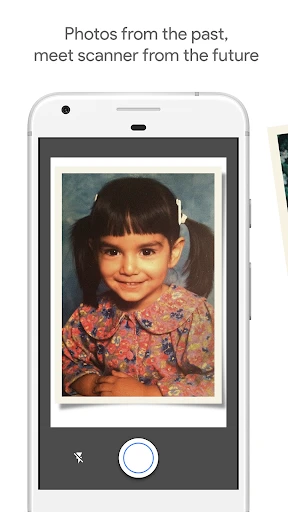
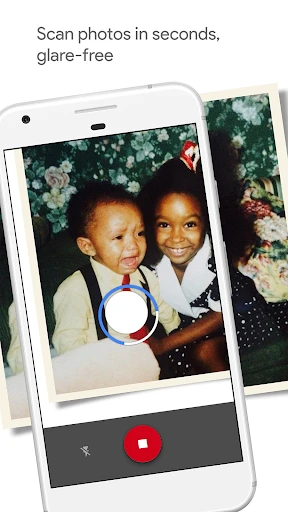
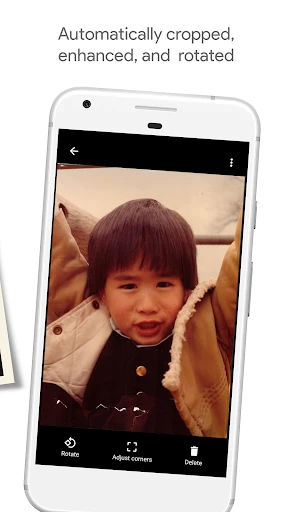

PhotoScan by Google Photos – High-Quality Photo Scanning App
PhotoScan by Google Photos is a mobile application designed to digitize physical printed photographs using a smartphone camera. It eliminates common issues like glare, shadows, and poor perspective by guiding users through a simple capture process. The app automatically crops, straightens, and enhances the scanned image, then saves it directly to Google Photos for cloud backup and organization. It is available as a free tool on both Android and iOS platforms.
Chapter 1: Function
The core function of PhotoScan is to convert physical photos into high-quality digital copies using a smartphone camera. Instead of taking a single flat shot, the app instructs users to move their phone over the photo while a circle target tracks four corner points. During this process, the camera captures multiple frames from different angles. The app then intelligently blends these frames together, removing reflective glare and correcting perspective distortions. After capture, PhotoScan automatically detects the edges of the photo, crops out any background, and applies smart color and exposure adjustments to enhance clarity. The final image is saved as a standard JPEG file and, if the user is signed in, is automatically uploaded to Google Photos for cloud storage and easy access across devices.
Chapter 2: Value
PhotoScan offers significant value by solving the persistent problem of digitizing old physical photos with minimal effort and maximum quality. Traditional methods, such as flatbed scanners, are time-consuming and require dedicated hardware. Simply taking a photo of a photo often results in harsh glare from overhead lights or windows, as well as distorted shapes due to an imperfect angle. PhotoScan eliminates these frustrations through its multi-frame capture and blending technology, producing clean, glare-free results directly on a mobile device. Its automatic edge detection and enhancement save users from manual cropping and editing in separate applications. Furthermore, seamless integration with Google Photos provides free high-quality backup and organizational tools like facial recognition and album creation, making it easy to search and share memories. This combination of convenience, superior output quality, and cloud integration makes it an invaluable tool for anyone looking to preserve family history, digitize albums, or declutter physical storage without sacrificing image fidelity. The app is completely free, removing cost barriers for users who need to scan large collections.
Chapter 3: Scenarios
PhotoScan is primarily used by individuals who have collections of printed photographs they wish to preserve and share digitally. Target user groups include older adults digitizing family albums from past decades, parents wanting to archive their children’s artwork and school photos, and genealogists or historians capturing historical prints. Everyday use cases include scanning loose photos found in shoeboxes or albums, digitizing polaroids and instant camera prints for social media sharing, and quickly copying photos from library archives or museums without using a scanner. The app is also useful for professionals like estate planners or real estate agents who need to digitize old property photos on-site. Additionally, anyone participating in a family reunion or memory-sharing event can use PhotoScan to instantly capture and distribute physical photos among attendees, ensuring everyone gets a digital copy before the originals are stored away.
Advantages
- scans physical photos without glare using guided edge detection
- auto-crops and straightens images during capture process
- enhances colors and details for faded old prints
- works offline with no internet required after download
- directly backs up to Google Photos with original quality
Disadvantages
- requires stable hand or flat surface for clear scans
- captures only single photo at a time
- no batch mode
- produces larger file sizes than standard JPEG scans
- glare reduction fails on heavily glossy or laminated prints
- no manual editing options for exposure or white balance
Frequently Asked Questions
Q: What does PhotoScan by Google Photos do?
A: PhotoScan is a mobile app that digitizes printed photos using a smartphone camera. It automatically detects edges, corrects perspective, and removes glare through a guided capture process. The resulting digital copies are saved directly to Google Photos, enabling cloud backup and easy sharing.
Q: Is PhotoScan free to download and use?
A: Yes, PhotoScan is completely free to download and use. There are no in-app purchases, subscription fees, or hidden costs. However, using Google Photos for cloud storage may consume your Google account storage quota, which offers 15 GB free and requires payment for additional space.
Q: Does PhotoScan require an internet connection or extra permissions?
A: PhotoScan can operate offline for local scanning, but uploading to Google Photos requires an internet connection. The app requests camera access to capture photos and storage permission to save images. No additional equipment or special hardware is needed beyond a smartphone with a rear camera.
Q: Can PhotoScan handle glossy or framed photos without glare?
A: Yes, PhotoScan is designed to reduce glare from glossy or framed prints. It uses a multi-capture technique that prompts you to move the phone over four dots, then blends the frames to eliminate reflections. However, extreme direct light or curved surfaces may still produce minor artifacts.
Q: How do I get support if scanning fails or quality is poor?
A: PhotoScan does not include in-app troubleshooting guides or live support. For issues like poor edge detection or low-quality output, users can retry scanning in even lighting and hold the phone steady. For further help, visit Google Photos Help Center online or contact Google support via their official channels.
Technical Information
Recommended for You

Ringtone Maker:create ringtone

W.W. Grainger, Inc.

AR Art Projector: Da Vinci Eye

Stretch Fall - Watch face

SHAREit: Transfer, Share Files

PDF Document - Viewer & Editor

Cross Stitch Thread Organizer

Universal TV Remote for All TV

Kohl's - Shopping & More

Vacation Countdown App

Dairy Queen® Food & Treats

Nomad Sculpt

FreePrints Photobooks

TORRID

HapEnd: Dating, Love & Fun

AI Baby Generator: Face Maker

Fishbrain - Fishing App

Glassdoor | Jobs & Community

Gauth: AI Study Companion

Doorzo - Japan proxy services

BluSmart:Premium Cabs in Dubai

Video AI - AI Hug & Kiss Maker

Reading Eggs - Learn to Read