Xbox Family Settings

Xbox Family Settings
Xbox Family Settings manage playtime screen limits for kids
Screenshots

Xbox Family Settings: A Parental Control Tool for Modern Gaming
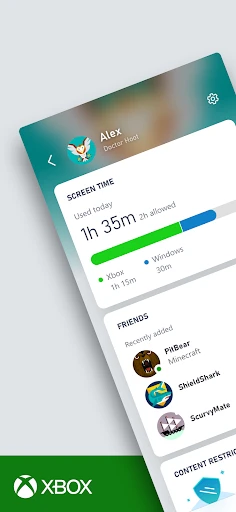
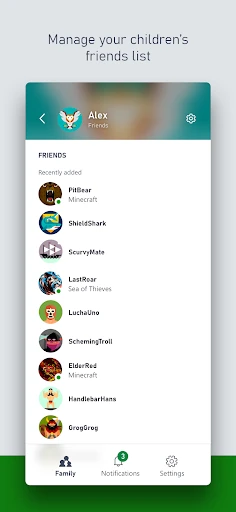
Xbox Family Settings is a companion app designed for parents and guardians to manage and monitor their children's gaming activities on Xbox consoles. It provides a straightforward interface to set screen time limits, control content access, review spending, and stay connected with a child's gaming community. The app empowers parents with real-time tools to foster healthy gaming habits without the need for complex console navigation.
Chapter 1: Function
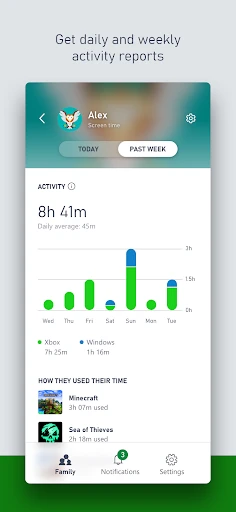
The core functions of Xbox Family Settings revolve around remote parental control. Parents can set daily screen time limits and enforce a curfew, with the app pausing the console automatically when time runs out. The app also allows content filtering by restricting games and apps based on age ratings set by the parent. Additionally, it provides a notification system that alerts parents about friend requests or changes to the child's account. A spending control feature monitors purchases and prevents unauthorized transactions. Finally, the Activity Report gives a weekly summary of playtime and top games, giving parents a clear view of their child's digital habits.
Chapter 2: Value
The primary value of Xbox Family Settings lies in its ability to balance freedom and safety for young gamers. Unlike built-in console settings that require manual setup on the hardware itself, this app enables parents to manage rules from their own phone, at any time, even when away from home. Its key advantage is simplicity: the interface eliminates technical jargon, making it accessible to non-gaming parents. The real-time notification system reduces anxiety by immediately alerting parents to social interactions, allowing for timely discussions about online safety. Furthermore, the app promotes proactive parenting rather than reactive restrictions. By providing weekly reports, parents can identify patterns, such as excessive playtime on school nights, and adjust limits accordingly. This data-driven approach helps children develop self-regulation skills. Another significant advantage is the ability to manage multiple children individually, tailoring settings to each child's age and maturity level. The app also supports cross-device management, covering Xbox consoles and linked Windows PCs through a unified family group. Ultimately, its value is in giving parents peace of mind while allowing children to enjoy gaming within a safe, structured environment.
Chapter 3: Scenarios
Xbox Family Settings primarily targets parents of children aged 5 to 17 who own an Xbox console. Typical scenarios include a parent setting a 60-minute daily limit for a 10-year-old who tends to play after homework, with the app automatically locking the console after time is up. Another common use case is a parent reviewing the weekly Activity Report on a Sunday evening to see if their teen spent excessive time on a multiplayer shooter game, then adjusting the content rating filter to block mature titles. The app is also used during holidays, where parents might temporarily extend screen time rules for a weekend but revert to stricter limits on school days. For busy working parents, the real-time notification feature is valuable; for instance, they can approve or deny a friend request from their phone while at the office, without interrupting the child's gameplay. Lastly, families with multiple children use the app to set different schedules, such as allowing a 14-year-old to play until 9 PM while restricting a 7-year-old to 7 PM, all from the same dashboard.
Advantages
- location-based screen time limits auto-switch by place
- outgoing friend requests require parent approval code
- weekly activity reports break down by game
- not just total
- microsoft family safety integration syncs with windows accounts
- hard cap on in-app purchases without remote override delay
Disadvantages
- no per-game playtime customization
- only per-category slots
- child account creation requires separate adult microsoft login
- missing cross-platform activity tracking for nintendo/playstation
- location check drains battery fast with background gps polling
- content filter misses some mature user-generated game modes
Frequently Asked Questions
Q: What is Xbox Family Settings?
A: Xbox Family Settings is a mobile app that lets parents manage their children's gaming activity on Xbox consoles. It provides real-time control over screen time, content filters, friend requests, and spending limits, all from a smartphone without needing to access the console directly.
Q: Is the app free or does it require in-app purchases?
A: The app is completely free to download and use, with no in-app purchases or subscriptions required. However, parents need a Microsoft account and their child must have an Xbox profile linked to a family group, which is also free to set up through Microsoft's family safety system.
Q: Does the app work on both Android and iOS devices?
A: Yes, Xbox Family Settings is available for both Android and iOS devices. It requires Android 6.0 or later and iOS 13.0 or later. The app is optimized for smartphones but not for tablets or desktop computers, and it requires an active internet connection to sync settings with the console.
Q: Can the app block specific games or restrict communication?
A: Yes, parents can block games based on age ratings or specific titles, and they can also restrict multiplayer communication and friend requests. Content filtering applies to both games and apps, and the settings are enforced across all Xbox consoles linked to the child's account.
Q: How do I troubleshoot if the app stops syncing with the console?
A: First, ensure the child's console is connected to the internet and turned on. Then, close and reopen the app on your phone. If the issue persists, sign out and sign back into your Microsoft account within the app. Verify the child's profile is still within your family group. No further advanced troubleshooting is provided by the developer.
Technical Information
Recommended for You

Daily Mail: Breaking News

DoorDash: Food, Grocery, More

Color Phone Call Screen App

Grok - AI Assistant

AppBarber: Cliente

Logos Bible Study App

Offline Music Player - MP3 App

Hairstyles for short hair

HolMe Dating app: Meet People

Daily Weather Launcher - Radar

Wellcare+

Hersheypark

Key WF55 Snowman Watch Face

BioLife Plasma Services

Fanatics: Shop NFL, NBA & More

Contraction Timer & Counter

Driver Pulse by Tenstreet

Weather Forecast: Live Weather

Groundwire: VoIP SIP Softphone

My crochet designer

FET: Connect, Date & Explore

Remodel AI - Home Renovation

Good Morning Wishes