AI Drawing : Trace & Sketch
AI Drawing : Trace & Sketch
Trace and sketch photos with AI for creative fun and learning
Screenshots
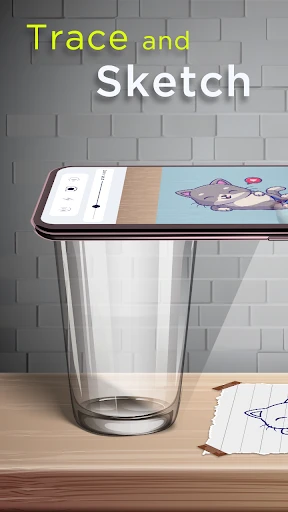
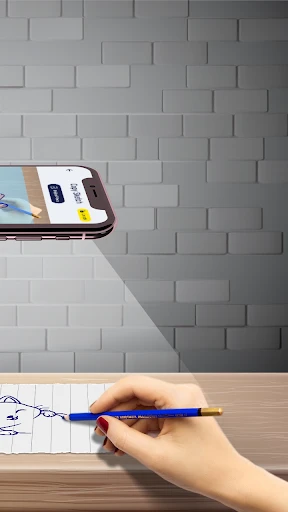
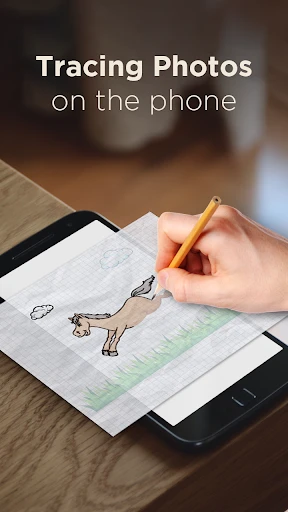
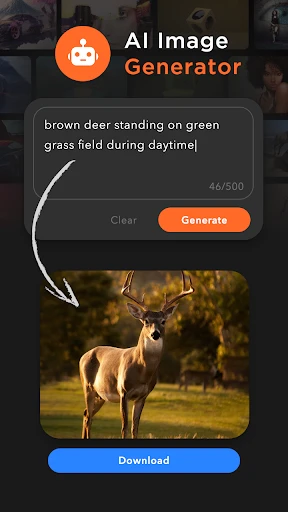

AI Drawing : Trace & Sketch – Your Pocket Art Tutor for Precision Drawing
AI Drawing : Trace & Sketch is a mobile application that leverages artificial intelligence to help users learn drawing by tracing and sketching. It transforms any photo or image into a line-based template, guiding users step-by-step to improve their hand-eye coordination and artistic skills. Suitable for beginners and hobbyists, the app offers a digital canvas, AI-generated outlines, and real-time feedback.
Chapter 1: Function
The core function of AI Drawing : Trace & Sketch is its AI-powered image-to-sketch conversion. Users can import any photo from their gallery or take a new one, and the app automatically extracts the main outlines and edges, creating a clean tracing template. The app then overlays this template onto the screen, allowing users to trace directly on their device using a stylus or finger. It includes adjustable line thickness, opacity control, and zoom features for detailed work. Additionally, the app provides a step-by-step drawing guide: it breaks down complex images into simple strokes and sequential stages, helping users build the final artwork gradually. Other functions include a dark mode for better visibility, undo/redo tools, and the ability to save progress as layered projects. The AI also offers a suggestion mode that recommends the best tracing difficulty based on the image complexity.
Chapter 2: Value
The value proposition of AI Drawing : Trace & Sketch lies in its ability to lower the entry barrier for learning drawing while maintaining an engaging and effective practice method. For beginners who feel intimidated by blank canvases, the app eliminates the fear of failure by providing a clear, structured path. Instead of requiring innate talent or expensive art classes, a user can start improving motor skills and observation through guided tracing. This builds confidence and consistent practice habits. The app also saves resources: no need for physical paper, pencils, or erasers, and no messy cleanup. Additionally, the AI adaptation ensures that each image is converted at an appropriate skill level, growing with the user. For experienced artists, the app serves as a fast reference tool for proportion checking, perspective analysis, or generating base sketches to save time. The real-time feedback, though not intrusive, helps users correct mistakes immediately, reinforcing correct techniques. Compared to traditional tracing books or static online tutorials, this app offers infinite variety of subjects – from portraits to landscapes – making practice never dull. The portability of a mobile device means users can draw anywhere: during commutes, while waiting, or in outdoor settings. Ultimately, the app democratizes art education by combining AI accuracy with human creativity, offering a low-cost, high-repetition learning loop that is proven to accelerate skill acquisition.
Chapter 3: Scenarios
Primary target user groups include absolute beginners who have never drawn before, casual hobbyists wanting to improve their drawing precision, and art students looking for a portable practice tool. Teachers and children aged six and above also benefit from the simple interface. Everyday use cases include: a parent helping a child learn to draw animals by tracing from a family photo; a commuter practicing portrait proportions on a train using a celebrity image; a traveler capturing a scenic view and later sketching it at home with the app’s guide; and a digital artist using the app to quickly generate a base outline before painting in another software. The app is especially useful for people with limited time who can practice for just five to ten minutes daily. It also serves users who prefer non-verbal instructions, as the visual tracing bypasses language barriers. Whether for personal relaxation, skill building, or classroom homework, AI Drawing : Trace & Sketch integrates easily into daily routines.
Advantages
- traces any photo into line art for guided sketching
- real-time edge detection adapts to different image complexities
- step-by-step overlay mode breaks down intricate drawings
- offline processing works without internet or cloud lag
- adjustable trace opacity lets beginners see original details
Disadvantages
- limited to 2D photo tracing
- no 3D model rotation support
- auto-detected edges sometimes miss fine lines in low contrast
- no vector export option for professional refinement later
- heavy image input can cause temporary stutter on older devices
- trace guide only covers outlines
- not shading or texture layers
Frequently Asked Questions
Q: What is the core function of AI Drawing Trace & Sketch?
A: The app transforms any photo into a line drawing template for tracing. Users select an image from their gallery or camera, and the AI generates an outline overlay. The app then displays the outline on screen with a transparent canvas, allowing users to place paper over their device and trace the lines manually. No drawing skills are required.
Q: Is the app free to use or does it require in-app purchases?
A: The app is free to download and includes basic tracing features. However, advanced functions such as high-resolution export, ad removal, and additional outline styles require a one-time in-app purchase or subscription. No additional equipment beyond a smartphone or tablet is needed, but a stylus can improve the tracing experience.
Q: Can I use AI Drawing Trace Sketch on any device or system?
A: The app is compatible with iOS 13.0 or later for iPhone and iPad, and Android 8.0 or later for phones and tablets. It does not support desktop computers or web browsers. The app works best on screens 6 inches or larger for comfortable tracing. No smartwatch or TV support is available.
Q: How accurate is the AI outline generation for complex images?
A: The AI detects edges and generates outlines with adjustable detail levels, from simple contours to fine details. For photos with low contrast or heavy shadows, accuracy may decrease. Users can manually increase contrast or adjust the outline thickness in settings. The app handles faces, animals, and landscapes reasonably well but struggles with highly cluttered backgrounds.
Q: What should I do if the traced image does not align with my paper?
A: Ensure the device screen brightness is set to maximum and the paper is held flat against the screen. If misalignment persists, calibrate the outline position by tapping 'Align' in the settings to re-center the image. For ongoing issues, check that the app is updated to the latest version. No physical maintenance is required; contact support via the app’s feedback form for persistent bugs.
Technical Information
Recommended for You

Sygic GPS Navigation & Maps

Back Market - Buy & Sell tech

The Official MTA App

Learn to Draw Cartoon

Blaze Pizza

Sony | Sound Connect

Weather & Radar - Storm radar

Magnificat Lenten 2025

Perpay - Shop and Build Credit

Ice Princess Makeup Salon

AiGo - Chat with AI Girlfriend

PicFrame

MyDyson™

Ringtones Music for Phone

단기임대 한달살기 - 삼삼엠투, 부동산 계약 플랫폼

Soccer Live Scores: SnapGoal

Niantic Campfire

Clean Mate & File Mate

Unacademy: Learn & Crack Exams



AnExplorer Pro File Transfer
Radio Garden
