AirMirror: TV Cast via AirPlay

AirMirror: TV Cast via AirPlay
Screen share AirPlay TV mirror for home entertainment
Screenshots

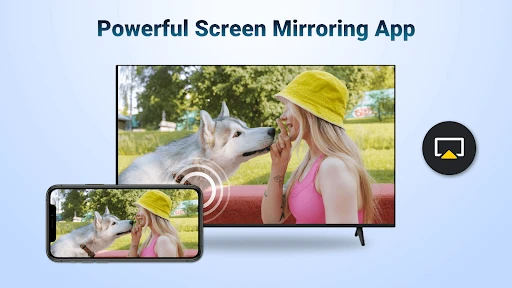
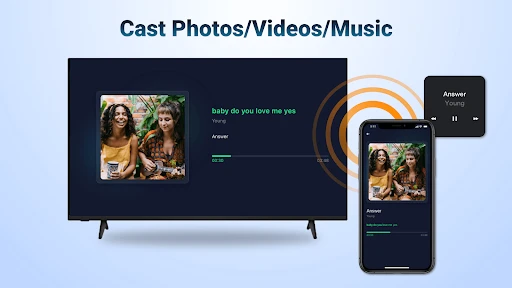
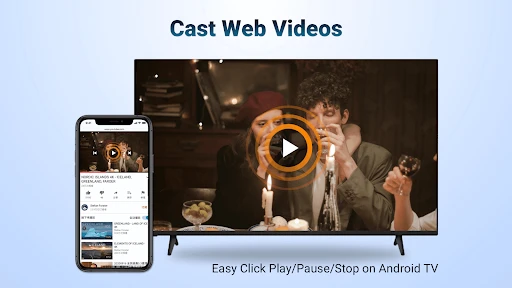

AirMirror: TV Cast via AirPlay – Stream and Mirror Your Screen Wirelessly
AirMirror is a screen mirroring and media casting application that enables users to stream content from their mobile devices to a television or other large display. It supports the Apple AirPlay protocol, allowing seamless wireless transmission of videos, photos, music, and app interfaces. The app is designed for users who want to share personal content, present work materials, or enjoy media on a bigger screen without the need for physical cables or additional hardware.
Chapter 1: Function
The core function of AirMirror is to act as a wireless receiver and transmitter for AirPlay-compatible content. Users can mirror their entire iOS or Android device screen onto a TV that supports Wi-Fi connectivity. It also facilitates the casting of specific media files, such as movies, TV shows, and recorded videos, directly from streaming apps or local storage. The app works over a local network, scanning for available AirPlay-enabled displays and establishing a real-time connection. It offers basic controls like play, pause, and volume adjustment, along with video quality settings to match network conditions. For iOS users, the app integrates with the native Control Center AirPlay trigger. For Android users, it provides a dedicated casting button. The app does not support offline functionality; it requires both the source device and the target display to be on the same Wi-Fi network. It can handle resolutions up to 1080p and supports both portrait and landscape orientation switching during mirroring.
Chapter 2: Value
The primary value of AirMirror lies in its simplicity and versatility. It eliminates the need for HDMI cables or adapters, reducing clutter and setup time. For home users, it transforms a standard TV into a smart display capable of showing family photos, streaming services, or gameplay from a phone. For professionals, it enables quick screen sharing during meetings or presentations without requiring a dedicated conference room system. The app also supports audio transmission, so users can play music from their device through the TV speakers. One key advantage is its cross-platform compatibility: it works with both iOS and Android devices, which broadens its user base and reduces device-specific limitations. It also includes a QR code scanning feature for fast network discovery, making first-time setup easier for non-technical users. Compared to hardware solutions like Chromecast or Apple TV, the app is a cost-effective alternative because it leverages existing infrastructure. It does not require any subscription fees, though some advanced features like uninterrupted casting or ad removal may be offered as in-app purchases. The app consistently updates to support newer iOS and Android versions, ensuring longevity. Its lightweight design means it does not consume significant system resources on the source device. Overall, the app democratizes access to screen mirroring by removing entry barriers such as expensive hardware or complex configuration.
Chapter 3: Scenarios
The primary target user groups for AirMirror are home entertainment enthusiasts, remote workers, and educators. In a home scenario, a user might want to cast a Netflix movie from their iPhone to a living room TV for a group viewing experience. Another common use case is streaming personal vacation videos or photo slideshows directly from a phone to a big screen during a gathering. For professionals, the app is useful in small offices or co-working spaces where no built-in screen sharing system exists. A user can mirror their Android phone to a TV to present a spreadsheet or a slide deck during a meeting. In educational settings, a teacher can use the app to show learning materials, diagrams, or interactive content from their tablet to a classroom screen without requiring a projector connection. The app also serves users who travel frequently, as they can use it to cast content from their phone to a hotel TV that supports AirPlay. Additionally, fitness enthusiasts might mirror a workout app from their phone to a TV for easier visual guidance. The app is not intended for high-latency applications like real-time gaming or live video production, but it performs adequately for standard streaming and presentation use cases.
Advantages
- casts iphone mirroring to tv without extra hardware
- supports both screen mirror and media streaming modes
- works with most wifi-enabled smart tvs and streaming sticks
- simple one-tap connection from control center
- low latency for presentations and photo slideshows
Disadvantages
- requires same wifi network for both devices
- no support for screen recording while casting
- android tv casting may need companion app installation
- occasional audio sync delay on older tv models
- free version displays ads after 30-minute usage
Frequently Asked Questions
Q: What is AirMirror and what does it do?
A: AirMirror is a screen mirroring app that casts content from iOS or macOS devices to smart TVs via AirPlay. It supports video streaming, photo sharing, and mirroring apps or games. No additional hardware is required, just a compatible TV and same Wi-Fi network. The app uses Apple's native AirPlay protocol for stable, low-latency transmission.
Q: Is AirMirror free to use or does it require purchases?
A: AirMirror offers a free version with limited daily casting time and ads. Full access requires a one-time in-app purchase or subscription, which removes ads and extends usage limits. No additional equipment like cables or dongles is needed. The app also requests network and local network permissions for discovery and casting.
Q: Does AirMirror work with all smart TVs and devices?
A: AirMirror is compatible with iOS 12.0+ and macOS 10.13+ devices. It works with smart TVs that support AirPlay 2, including Samsung, LG, Sony, and Vizio models. For older TVs, a separate AirPlay receiver device like Apple TV is required. Android TVs and non-AirPlay screens are not supported natively.
Q: How can I fix connection drops during casting?
A: Ensure both devices are on the same 5GHz Wi-Fi network and within range. Restart the app and TV, then disable VPN or firewall temporarily. If the issue persists, update your iOS/macOS version and check if the TV supports AirPlay 2. The app does not support offline casting or Bluetooth connections.
Q: Can I use AirMirror to cast DRM-protected content?
A: No, AirMirror cannot cast DRM-protected content from apps like Netflix or Disney+ due to copyright restrictions. Those apps block third-party screen mirroring. The app only works with local photos, videos, music, and non-DRM streaming sites. For DRM content, use the app's native AirPlay button or official streaming device.
Technical Information
Recommended for You

Castly -Roku, Chromecast,DLNA

Mens Hairstyles And Haircuts

My Mitsubishi Connect

Filtre for Selfie

Spreaker Podcasts

STARZ

Realtor.com Real Estate & Rent

Super Teacher

Camy — Live Video CCTV

Golf Genius

Duo Mobile

ULTRA Digital Retro watch face

Pro Emulator for Game Consoles

Lemonade Insurance

Binance: Buy Bitcoin & Crypto
Stick Nodes Pro - Animator

DW - Breaking World News

Ski Tracks

Radio Garden

Find my Phone - Family Locator

Valley Metro

Zoom for Chromebook

Home Design 3D
